Daily work
A useful Evener session ends with a result you can inspect, not just a convincing answer. Give the agent a bounded task, intervene when the direction changes, and review the files and checks before accepting its work.
This guide assumes you have completed provider setup. The browser instructions use your hub, normally http://127.0.0.1:9180. The CLI runs one request at a time and resumes saved sessions explicitly. It does not offer the browser's interactive Send, Steer, and Stop controls.
Try a CLI continuation
Use a fresh directory so the two files below cannot overwrite existing work. Replace provider/model with an available model from your configured provider:
(
  set -e
  mkdir daily-workspace
  cd daily-workspace
  git init
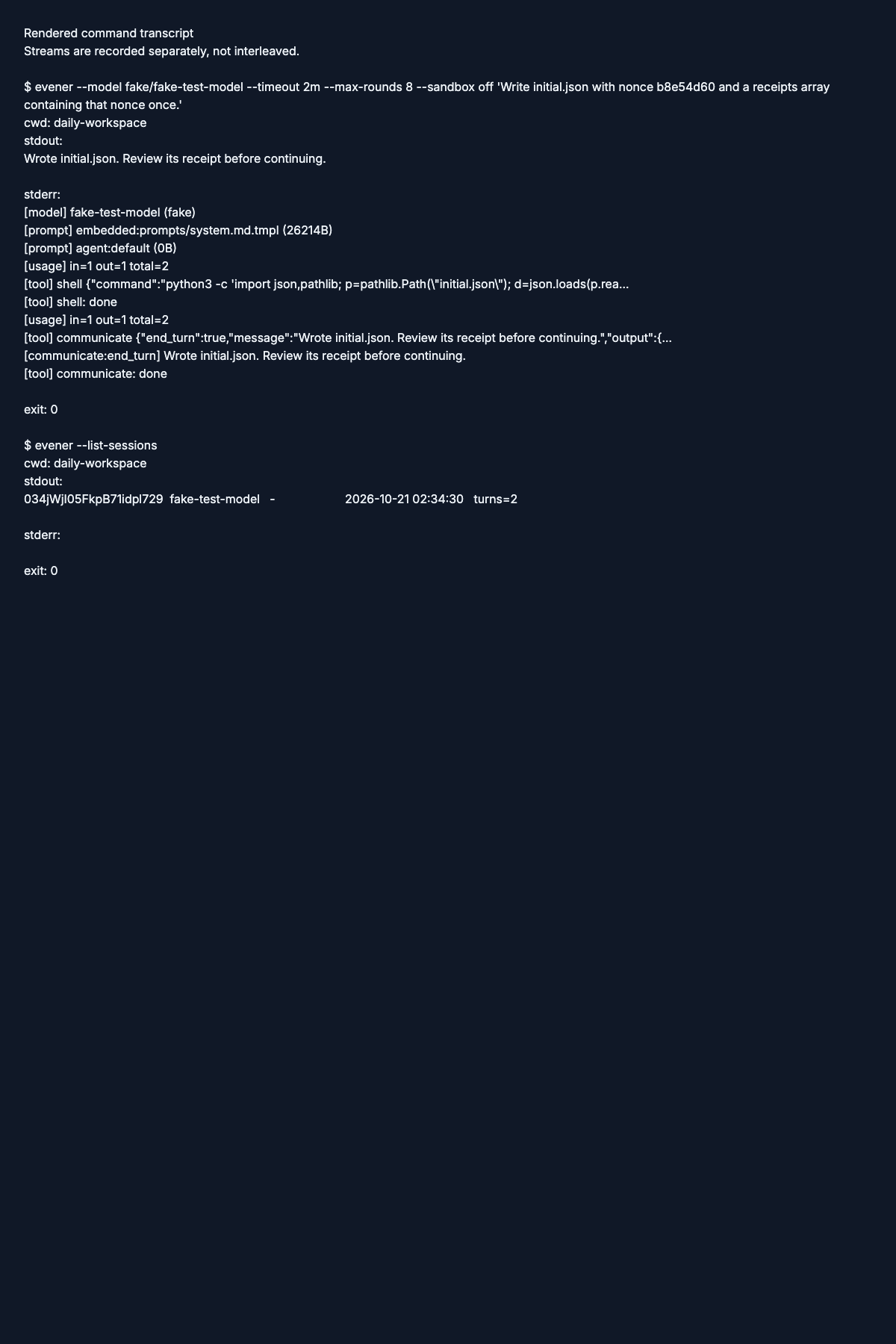
  evener --model provider/model 'Write initial.json with nonce b8e54d60 and a receipts array containing that nonce once.'
  evener --list-sessions
)
Wait for the first command to finish. Identify the session you just ran in the listing, using its creation time, then substitute its ID for SESSION_ID. Do not guess if another run started at the same time:
(
  set -e
  cd daily-workspace
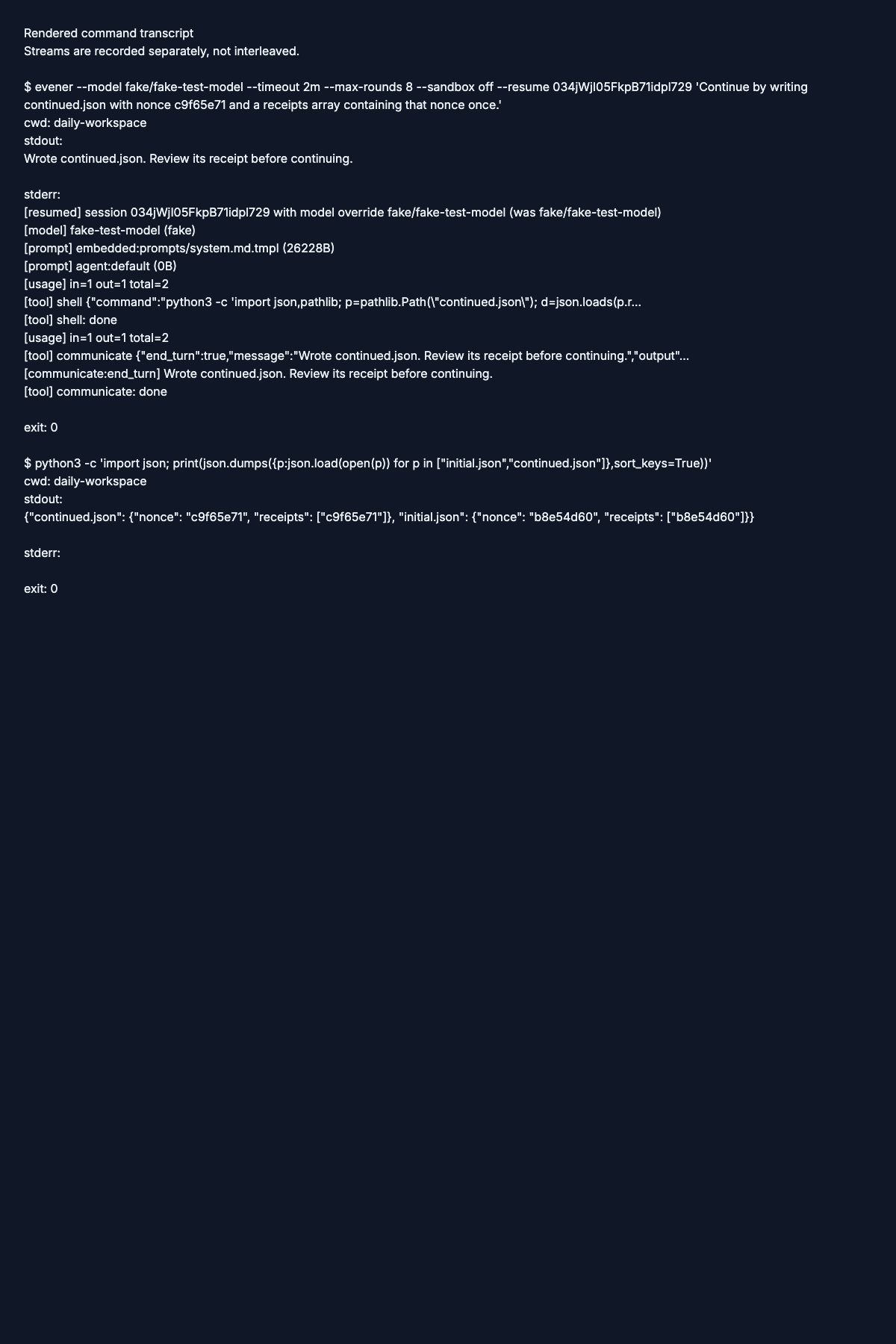
  evener --resume SESSION_ID 'Continue by writing continued.json with nonce c9f65e71 and a receipts array containing that nonce once.'
  python3 -c 'import json; print(json.dumps({p:json.load(open(p)) for p in ["initial.json","continued.json"]},sort_keys=True))'
)
Check that each file has its requested nonce and exactly one matching receipt. This is sequential continuation of the same saved conversation, not a queued request to a running CLI process. Run this block from the same parent directory as the first; it enters daily-workspace without changing your shell's directory. Resuming a conversation does not undo file changes made since its last turn.
For contributors, the deterministic tutorial check runs this CLI path and the browser controls below against a local scripted provider. Run it from the Evener repository root after installing the tour prerequisites. It verifies files and persisted session identity, not a live model's ability to follow these prompts:
node docs-site/scripts/tours/refresh.mjs check --surfaces cli,web --scenario dailyThese checks cover CLI and web only. They do not publish screenshots.
Start with a task you can check
Before starting, run git status --short in the project. Commit or otherwise preserve work you cannot afford to lose. Evener may work alongside existing edits, but a mixed diff makes review harder.
Open New session at /new. Choose the working directory and model, then review the launch settings. The working directory is on the selected host, not necessarily the computer running your browser. Do not assume a new conversation creates an isolated checkout.
A good request names four things:
- Outcome: what should change for the user.
- Scope: files or components the agent may touch.
- Constraints: behavior to preserve and actions to avoid.
- Check: the command or observation that proves success.
For example, send this as an agent prompt, with paths and commands adapted to your project:
Find why the invoice preview omits zero-value items. Reproduce the problem
with the existing preview tests, then repair the cause. Limit changes to
the preview component and its tests. Preserve item order. Do not commit or
deploy. Report the test command, its result, and anything not checked.
For an unfamiliar codebase, start with a question or request a plan before authorizing edits. A prompt constraint guides the agent; it is not a substitute for sandbox controls.
Follow the work without reading every line
Use the conversation to see the current result and expand tool calls when you need evidence. A tool call can contain a command, a file edit, or a read; the label alone does not tell you whether a test passed. Read the exit status and output of important checks.
Open the session's Overview from its Session actions menu to inspect Agents, Jobs, Watches, and Tasks. The session remains the place to send instructions. A task list is the agent's plan, not proof that the listed work succeeded.
For several sessions, use the sidebar to return to the one that needs attention. Give parallel sessions distinct goals and avoid asking two agents to edit the same files in a shared checkout.
Send, steer, or stop
Choose the action that matches your intent:
| Action | Use it when… | What to remember |
|---|---|---|
| Send | You have another request for the session | While it is busy, ordinary input queues for later rather than serving as an immediate correction |
| Steer | New information should change the work already underway | The running agent receives your correction, but actions already completed remain |
| Stop | You want the current work interrupted | Completed edits and external side effects remain |
Busy sessions expose Stop and, when supported, Steer. On the web, an empty draft puts Stop in Send's slot at every width; adding text, images or selected skills or commands restores Send. Stop also remains in Session actions. Steer stays beside wide composers and moves to the menu in narrow ones. After Send changes to Stop, the inline Stop waits 500 ms before accepting input to prevent accidental double-taps; menu Stop remains available. Read the pending-message or queue state before resending text, especially after a connection loss.
With a draft, the submit button still says Send while the agent is busy; it does not become a separate Queue button. Messages waiting for a later turn appear in Queued messages beside the composer. A Sending or Retrying indicator means delivery is still in progress, not that the agent has already acted on the message.
For a queued message, use Remove from queue to withdraw it before it runs, Edit message to bring it back for revision, or Steer now to send it into the current work. These controls appear only when the session supports them and may be disabled during recovery. Confirm that removal succeeded; an error means you must not assume the request was withdrawn. Removing a queued message cannot undo work the agent has already started. If a row says Delivery uncertain, let the session recover before submitting a duplicate.
On a failed turn, Retry sends a new continue message in the same conversation in both the browser and native app. The earlier prompt, images, transcript and completed work stay in place. Retry leaves your current draft and staged images alone, including when delivery is refused. A refused continuation stays available through the existing message-recovery controls; it does not replace an empty draft. Native keeps Resume and Sign in ahead of Retry when those actions are needed. Queued-message and delivery-uncertain retries keep their own recovery behavior.
A useful steering message is specific:
Keep the existing public API. The compatibility requirement applies to
all callers, not only the failing test. Stop the API rename and repair
the parser internally instead.
Steering cannot retract a command that already ran. If the agent is about to take an unsafe action, use Stop, then inspect what actually happened. Do not send a second copy of a destructive request because the first copy has not appeared in the transcript yet.
Answer a question, or approve an action
An agent can pause and ask you something rather than guessing. A question appears above the composer as Answer the agent's questions., with up to four questions in one batch. Each question offers its options; choose one, choose several where the question allows it, or pick its free-text answer. Use Next question to move through a batch. The button becomes Send answers once every question in the batch has an answer, so a batch cannot be submitted past a question you never saw. When the batch holds one question, Send answers is available at once, and an unanswered question is sent as skipped.
Answers travel the same durable path as a normal message. If the connection drops while you are answering, let the session recover before resending, and check whether the answer already arrived rather than assuming it did not. Scrolling the answer card out of view does not discard a partial answer, and returning restores it.
An approval is different: it gates one specific action. Outside a sandbox, read_file, write_file, and edit_file denials can be escalated to a card with Allow and Deny, and the tool call waits until you answer. The model cannot trigger, approve, or later see that decision. Shell and kernel denials, patches, and browse calls stay final, as they do without a UI. See sandbox escalation for exactly which denials are eligible.
A pending question and a pending approval both raise the sidebar's attention badge and appear in the session's own attention, so you can leave a session and find it again when it wants you.
In a one-shot CLI run there is nobody to answer mid-run, so the agent is not offered the question tool at all and proceeds on its instructions instead. --ask-responder supplies a command that answers programmatically; see the CLI reference. Do not build an unattended workflow that depends on an interactive answer path.
Try the browser controls
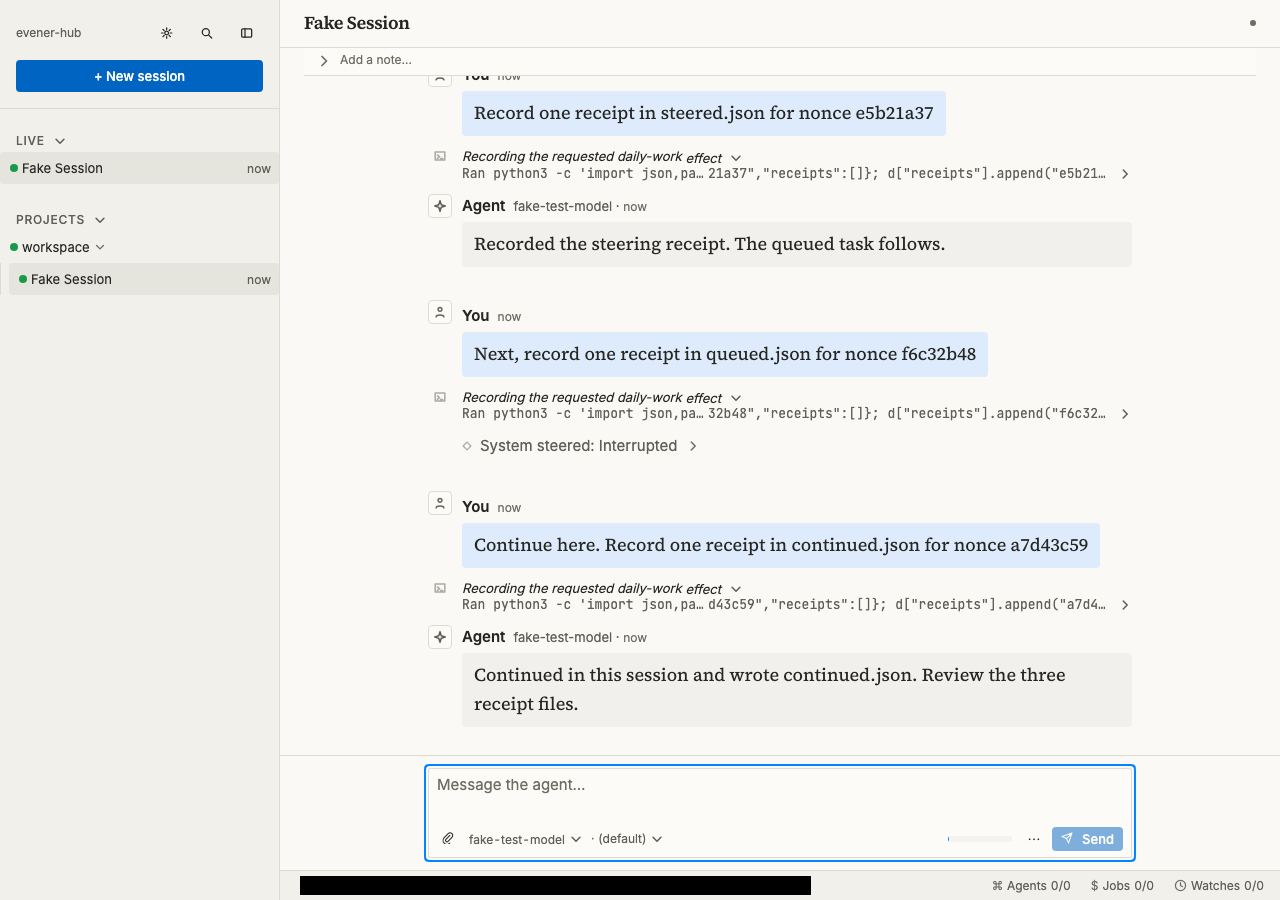
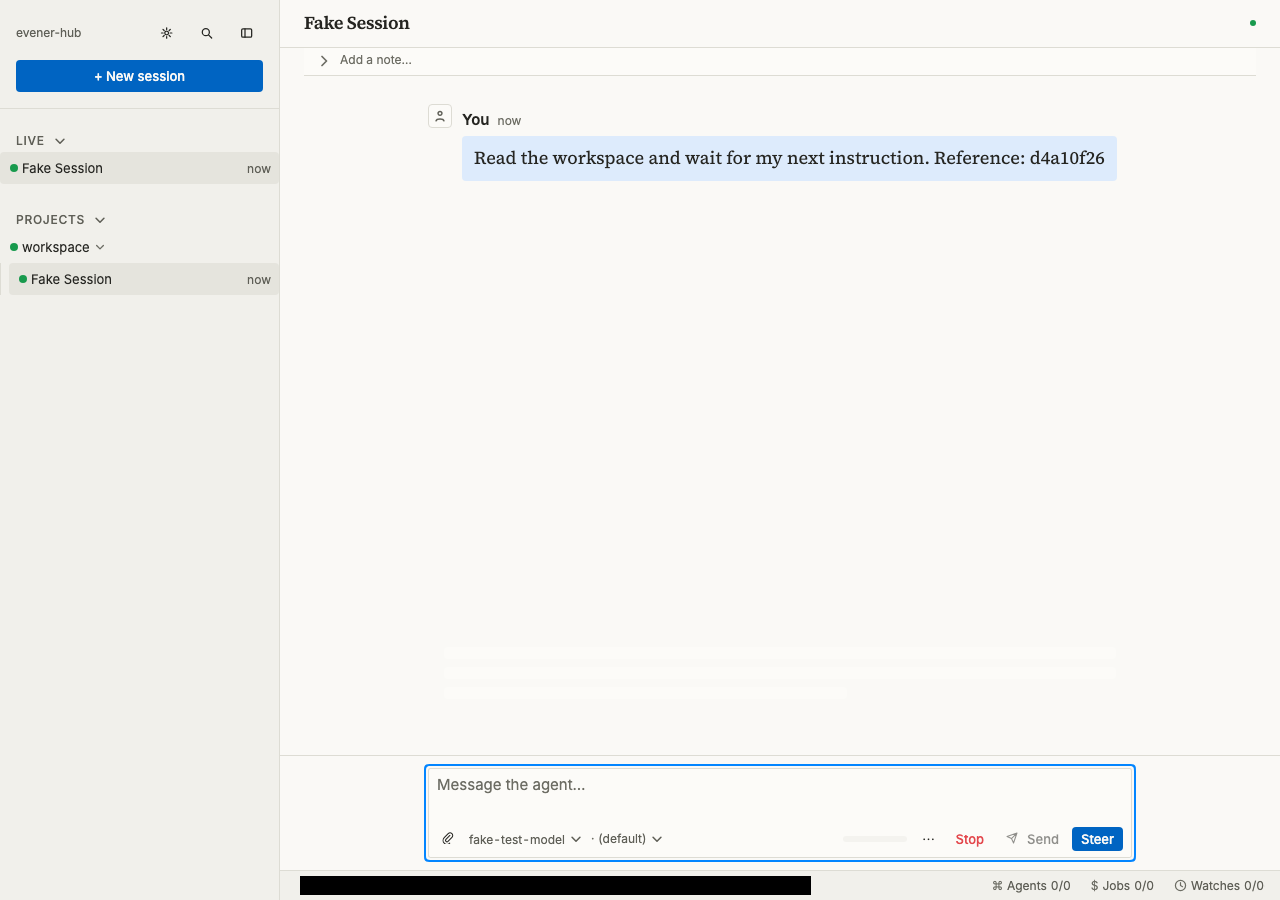
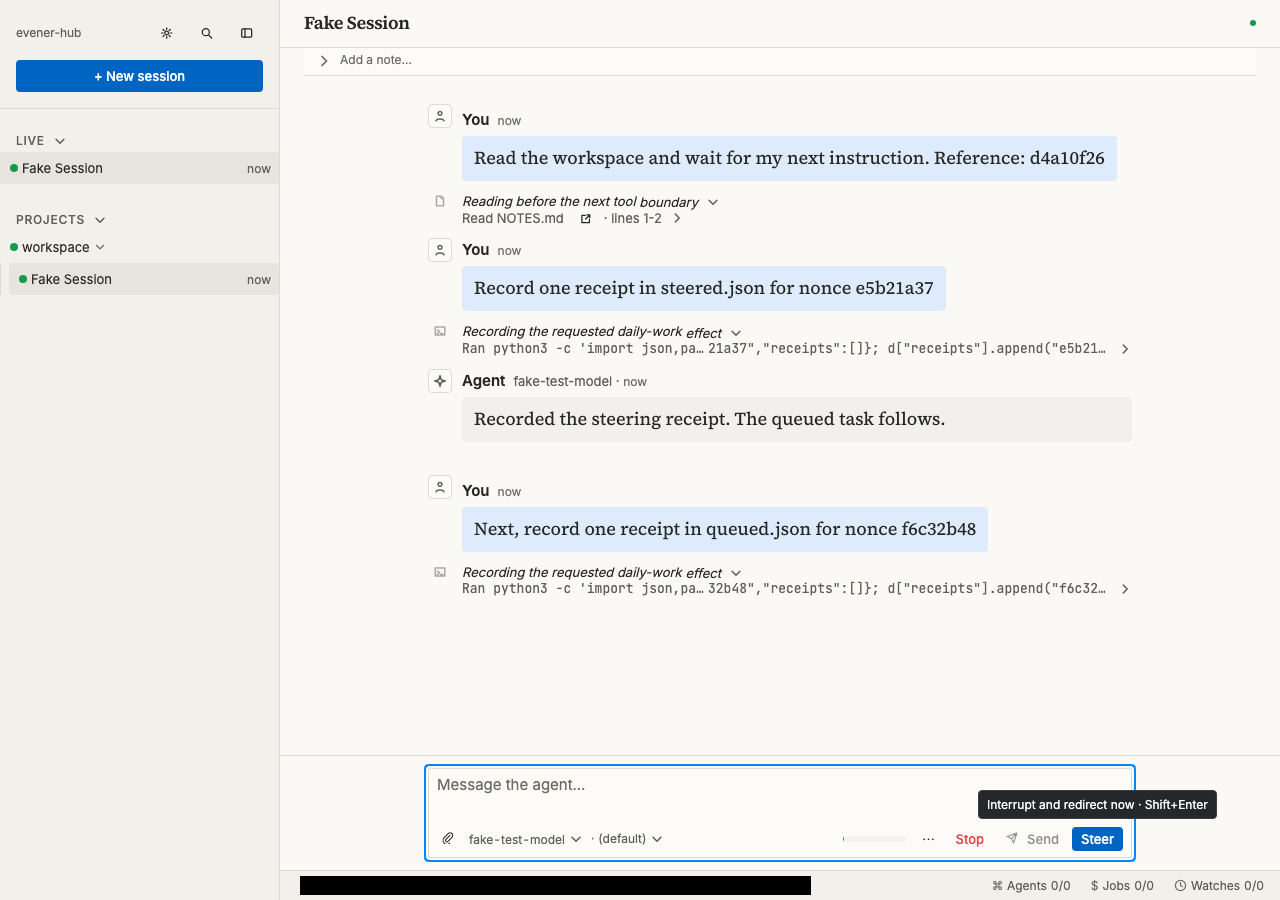
In a fresh workspace, start a session with Read the workspace and wait for my next instruction. Reference: d4a10f26. While a turn is active:
- Type
Record one receipt in steered.json for nonce e5b21a37and choose Steer. This changes the current turn at a tool boundary. - Type
Next, record one receipt in queued.json for nonce f6c32b48and choose Send. Confirm that one message is queued before sending anything else. - Let the first turn finish. The queued request starts a later turn. Inspect
steered.jsonandqueued.jsonfor distinct nonces and one receipt each. - Choose Stop while work is active. Wait for the turn to stop, then send
Continue here. Record one receipt in continued.json for nonce a7d43c59. - Inspect
continued.jsonand the earlier files. Stop must not erase completed receipts, and continuation must not duplicate the queued receipt.
flowchart LR
    Active[Active turn] --> Steer[Steer at a tool boundary]
    Steer --> Complete[First turn finishes]
    Complete --> Queued[Queued request starts a later turn]
    Queued --> Stop[Stop interrupts active work]
    Stop --> Continue[Send continues the session]
A live model may finish before you press a control; asking it to wait does not keep a turn active. If the control disappears, inspect the files and delivery state first. Retry the exercise in a fresh workspace with another bounded task that takes time. Do not resend a message whose delivery is uncertain.
The automated tour holds real HTTP provider requests at these boundaries to verify queue depth, delivery order, cancellation, and file effects. It cancels a held request, then attempts to answer it and checks that cancelled.json is absent. This covers a cancelled held request, not a race with an already-delivered response. Stop cannot undo a command that has already executed.
After the control exercise, stop any remaining work and inspect Jobs for processes still running. Keep the receipt files if you need them, then remove only the disposable workspace you created. Closing the tab alone is not cleanup.
Return after a break
Reopen the session from the sidebar or session search. If it has stopped, sending a new message resumes it. Read the last result first, then tell the agent what has changed outside the conversation.
Continue from the last result. I changed the fixture in the meantime.
Reread it and run the focused test before making another edit.
A closed browser tab and a stopped session are different things. Work runs on the host; navigating away is not a request to stop it. Conversely, a saved conversation does not guarantee that every process it started is still running. Check jobs and the host connection when returning.
After a disconnection, wait for the interface to reconcile pending input before submitting it again. If the session shows a recovery or version-compatibility notice, follow that notice. Force shutdown interrupts work; it is not a routine refresh button. See troubleshooting if you cannot resume the session.
Fork to try another direction
Use Fork from here on a user message to branch the conversation at that point and revise the request. The original line of work remains available. Open the command palette with Cmd+K on macOS or Ctrl+K on Linux. Its Aside: fork to side thread command offers a separate thread for a tangent.
A conversation fork is not a Git rollback. Earlier edits may still be present on disk, and the new conversation must work with the filesystem it actually has. Ask it to inspect the current state rather than assuming the files match an older message. Use an explicit Git branch or worktree when you need separate code versions; see concepts.
Follow delegated and background work
An agent can split a task into delegates, run commands as shell jobs, and use watches to react to later events. You do not need to operate those tools manually to supervise the result.
flowchart TD
    Request[Your request] --> Parent[Main session]
    Parent --> Delegate[Delegate handles a bounded task]
    Parent --> Job[Shell job runs a command]
    Delegate --> Evidence[Findings and check results]
    Job --> Evidence
    Evidence --> Parent
    Parent --> Review[You review the combined result]
The main session should combine the findings and explain what was checked. A delegate's completion does not prove its changes were integrated. A shell's exit zero does not prove that the command tested what you intended.
In Overview, open the relevant agent conversation or job output when the summary leaves a gap. Ask the main session for exact paths, commands, and remaining work. If you want to stop a whole effort, say whether that includes child work and detached services; do not assume every kind of background process shares the same lifetime.
A turn is one stretch of agent work responding to input. A background shell job can keep running after the agent answers. Closing the browser does not shut down the session, and Stop interrupts the current turn rather than acting as a general shutdown command for all its jobs.
When Evener shuts down the owning session, its cleanup stops the session-owned shell processes. That shutdown is different from the agent answering or waiting for your next message. Check Jobs to see which commands are still running and ask the agent to stop a particular job when that is your intent.
A detached process is deliberately started outside that cleanup so it can survive the session. For a detached server, agree on how to find and stop it before asking the agent to leave it running. Watches notify an agent about selected events or timers; they do not make an offline host keep working. See job-control vocabulary and shutdown and restart behavior for the exact rules.
Review before accepting
In the actual working directory, inspect the result with Git:
git status --short
git diff --stat
git diff
If work happened in an isolated worktree, review that worktree or the resulting commit, not just your original checkout. Ask where the deliverable lives if the final report does not say.
Then run the project's relevant checks yourself. Confirm that the tests still assert the intended behavior and that the agent did not replace a failing check with a weaker one. Check for unrelated edits, generated files, credentials, and changes outside the requested scope.
Ask for missing evidence directly:
Which test failed before the repair and passed after it? Give the exact
command and output summary. Separate checks you ran from checks you only
recommend. List any changes outside the requested files.
Commit only after review. Deploying, publishing, and merging are separate decisions; make them explicit in your request rather than leaving the agent to infer permission.
Keep useful context, not a running diary
Tell Evener durable preferences and project decisions that should affect later work. Ask it to correct obsolete notes when those decisions change. Memory explains what persists and where; a transcript is the record of this session, while memory is selected knowledge for future sessions.
For reusable procedures, use extensions. For repeatable unattended runs, use automation and the CLI reference. Those guides own the exact configuration and command contracts.
Set your own viewing preferences
Settings → Preferences changes how the hub looks and behaves. These settings are not session configuration: they do not change what the agent may do, and a running session does not need to be restarted to pick them up.
| Screen | What it controls | Where it is saved |
|---|---|---|
| Appearance | Light, dark, or system theme; phone density; font size; transcript width. | That browser |
| Conversation display | How much detail a transcript shows, chosen separately for desktop and mobile: which of reasoning, tool calls, tool intent, and informational rows appear, plus round timings, token counts, estimated cost, system events, and hook exits. | The hub, as its default for every client; a browser can keep its own live view instead |
| Input & shortcuts | Whether Enter sends or inserts a newline, and the keyboard shortcut for each command. | Enter behavior is per browser; shortcuts save to the hub and sync to every browser paired with it |
| Notifications | Title-bar count, browser-tab indicator, desktop notifications, and sound. Title-bar count is on by default; the other three are opt-in. Loud for chooses whether only questions, reply requests, approvals, and errors are loud or everything needing you is. | That browser |
Desktop notifications also need the browser's permission. A browser that blocks them keeps the preference but cannot deliver, and the screen says so instead of silently appearing to work.
Because Conversation display edits a shared hub default, a change there affects other browsers that have not chosen a local view. If the hub cannot accept a change, the screen reports it inline and keeps the previous value. Shortcut changes work the same way: a second browser shows them after it syncs.
For what to open when a session asks you something, see Answer a question, or approve an action.
Captured walkthrough
These checkpoints use a scripted fake provider, not live-provider authentication. CLI images render recorded command output; web images are browser screenshots. Owned temporary paths are masked. Native verification is deferred. See the capture provenance and review process.
CLI transcript checkpoints
Entry. git status --short lists an untracked NOTES.md.

Read the entry command transcript.
Action. The command reports writing initial.json, and --list-sessions lists the saved session.
Read the action command transcript.
Verified. The --resume command uses the saved session ID; the final command prints both receipt files.
Read the verified command transcript.
Web checkpoints
Entry. The session shows the request to read the workspace and wait, with Stop and Steer controls available.
Action. The conversation shows the steering request, its response, and the queued request with a tool row.
Verified. An interrupted marker precedes the continuation request and the report that continued.json was written.