Get started
Finish your first Evener task in a project you already know. You will install Evener, connect a model provider without leaving the New session form, choose a model explicitly, review the session's effective permissions, and check the result yourself. A disposable Python exercise is available if you do not yet have a suitable project.
Evener runs the agent on your computer or another configured host. The browser is its control surface. A hub serves that interface and connects it to sessions; a session holds one conversation and its work.
A model provider supplies the AI model that reads your request and proposes actions. Evener carries out those actions through tools, such as file readers and shell commands. A model with tool-call support can request those tools, rather than only return text.
Before you begin
You need:
- Linux x64 or macOS on Apple silicon for the prebuilt installer below.
- A terminal with
sh,curl,tar,install, and eithersha256sumorshasum. - Git for the first-task review loop. Python 3 is needed only for the optional disposable exercise.
- A browser and network access to GitHub and your chosen model provider.
- An API key from a supported provider, or another supported authentication method. Hosted model use may incur charges.
If you want to run the model locally, configure Ollama instead of the hosted-provider step below. Complete its setup and choose a model that supports tool calls before starting the session. A local server does not need a hosted-provider key, but it does need a downloaded model and enough machine resources to run it.
Evener can edit files and run commands. Start with a project and task you can review. A disposable directory is not a security sandbox. Read sandboxing before working with untrusted code.
Install Evener
These docs track main. Install the latest successful snapshot build for the closest match; it may still trail the newest source commit. Start in a new directory so the download cannot overwrite an earlier installer. Run this in your terminal:
mkdir evener-install-review && cd evener-install-reviewIf that directory already exists, choose another unused name before continuing. Then download and inspect the installer:
curl -fsSL https://raw.githubusercontent.com/prime-radiant-inc/evener/main/install.sh -o evener-install.sh
less evener-install.sh
EVENER_INSTALL_VERSION=snapshot sh evener-install.sh
Inspect the downloaded script before running it: it installs executable code. The installer verifies the archive's SHA-256 checksum, installs the evener executable under ~/.local/share/evener/bin, and links it into ~/.local/bin by default. Commands such as evener hub are subcommands of that executable.
Check that your shell can find Evener:
export PATH="$HOME/.local/bin:$PATH"
evener --version
Add that PATH entry to your shell's startup file if needed. The version command should print a version rather than command not found. If the installer rejects your platform, use the source-build guide; changing the archive name cannot make a binary compatible.
Release alternative
To choose the latest tagged release instead, run the same reviewed installer without the snapshot setting:
EVENER_INSTALL_VERSION=latest sh evener-install.shRelease behavior can lag these guides. EVENER_INSTALL_VERSION also accepts an existing release tag. Do not treat an example version number as an available release. See the CLI reference for upgrades and remote installation.
Open the browser interface
Start the hub in a terminal you can leave open:
evener hubBy default it listens on 127.0.0.1:9180, reachable only from the same computer. Open the authorization URL printed at startup. It has this shape, with a real token in place of the placeholder:
http://127.0.0.1:9180/auth/<token>The URL signs this browser in. Treat it as a credential: do not paste it into a conversation, screenshot, or bug report. After signing in, use http://127.0.0.1:9180 normally.
Leave the hub running. Closing a browser tab is not a stop command for the agent. If the port is occupied or the page will not open, use troubleshooting rather than launching more hub instances. For another bind address or a supervised service, use the hub runbook.
Prepare a first task in your project
Choose a project you understand and a small, reversible task. Good first tasks have a clean Git working tree, a narrow expected diff, and a check you already trust. A documentation correction, a focused test repair, or a small bug with a reproduction is better than deployment, credential changes, migrations, or destructive work.
In the project's terminal, record the starting point:
git status --short
pwd
Run the task's check before Evener changes anything. Keep its command and output; you will run the same check afterward. If the tree is not clean, either account for every existing change or choose another project. Evener does not decide which pre-existing changes are safe to overwrite.
Connect a provider in New session
Open New session at /new. On a fresh configuration with no provider or credential saved, connect a provider here before choosing a model. The working directory, task draft, provider, and model all belong to this launch form:
- Choose the project directory reported by
pwdand write your bounded task. Your directory and task remain in the form while provider setup opens and closes. - If the form says a provider is required, select Connect provider. Choose the provider you intend to use. An ordinary chat subscription is not necessarily an API account.
- For an API connection, paste the actual key into the masked field and select Save and check. For a supported ChatGPT/Codex subscription, choose the separate OpenAI Codex sign-in route instead; it is not the
openaiAPI-key connection. - A successful check means Evener saved the resolved access and fetched that provider connection's model list. It does not send your task, make a generation request, or prove quota, billing, model capability, or generation access. Fix an inline failure and retry; a failed list check does not erase a key that was saved successfully.
- Select Choose model, then explicitly choose the model for this session. If listing fails, use Retry models. If the provider cannot support a list check, Continue without verification is an unverified route, not a pass.
For a custom endpoint, choose Show all providers, then OpenAI-compatible endpoint and Configure provider. Enter a connection Name and the server's Base URL, then choose Create. Continue with the API-key field and Save and check above. Use the endpoint's documented API base URL, not its website address; confirm that you trust that destination before sending it a credential.
The default credential file is ~/.config/evener/credentials.toml (under XDG_CONFIG_HOME when set). Evener writes it with owner-only permissions. Do not put keys in your project, task, screenshot, or bug report. Custom paths, environment fallbacks, and provider-specific rules are covered in configuration and Connecting a provider.
First-provider verification
Contributors can run the empty-configuration browser journey from the checkout root after completing the build setup and browser prerequisites:
EVENER_TUTORIAL_TOURS=1 go test ./cmd/evener-hub -run '^TestTutorialFirstProviderWeb$' -count=1 -timeout=10mThis opt-in check starts with no saved provider or credential. It uses the real forms to add an OpenAI-compatible loopback endpoint and a synthetic key, then independently reads the saved configuration, verifies authenticated model discovery, and checks a completed session and its file output. It uses the real hub, runtime, and tools; only the HTTP model provider is scripted. Without the opt-in, the test skips; a requested run fails if its prerequisites are missing. It produces no provider-setup screenshots and does not qualify external login, billing, or live model behavior. Native verification remains deferred.
Review the task and permissions, then Start
Before selecting Start, confirm the directory, task, and chosen model are still the ones you intended. Review Effective access near Start. It reports the resolved launch setting, including an Advanced sandbox override when one is set. Use Change to reach the control that owns that value.
Task instructions and permissions are different controls. A sentence such as “work only in this directory” tells the model what you want; it does not restrict the tools. Full access has no sandbox restriction. Read-only prevents workspace changes. Workspace write permits changes inside the workspace. Restricted applies the tightest filesystem and command access. Use the least access the task needs, and treat the displayed Effective access value as the launch result rather than inferring access from the task's wording.
Use a task shaped like this, replacing every placeholder with facts from your project:
Fix <one specific problem>. First run <trusted check> to reproduce it.
You may change <named files or area>. Do not change <protected files or area>.
Make the smallest repair, rerun <trusted check>, and report the changed files
and the actual result. Do not commit or deploy.
Those file instructions bound the requested work; the access setting bounds the tools. Select Start only after both are right. Connecting a provider and choosing a model do not create a session. Leaving the task blank is also supported: Start creates an empty session where you can write the task later.
The conversation shows the agent's messages and tool calls. If it proposes unrelated work, correct it in the composer. Daily work explains Send, Steer, and Stop.
Check the result yourself
When the agent reports completion:
- Run the same check you recorded before the session.
- Read
git diffandgit status --short. - Confirm protected files did not change and every remaining change belongs to the task.
The agent's report is evidence to inspect, not the final verdict. Do not accept a passing check obtained by weakening that check. If a check fails, send its exact output back to the same session and ask for a focused repair.
You have now completed the basic loop: state a bounded task, choose its actual permissions, observe the work, and verify it independently.
Optional disposable exercise
Use this exercise if you do not have a suitable project. It copies a small total_cents bug and an independent checker into a disposable Git repository:
Choose a parent directory where neither evener-docs nor evener-first-task exists. Run this whole block together. The checks and && chain stop setup if either path already exists or any setup command fails; do not continue by running the copy commands separately.
[ ! -e evener-docs ] && [ ! -L evener-docs ] &&
[ ! -e evener-first-task ] && [ ! -L evener-first-task ] &&
mkdir evener-docs evener-first-task &&
git clone --depth 1 https://github.com/prime-radiant-inc/evener.git evener-docs &&
cp evener-docs/docs/examples/first-task/README.md evener-first-task/ &&
cp evener-docs/docs/examples/first-task/receipt.py evener-first-task/ &&
cp evener-docs/docs/examples/first-task/check.py evener-first-task/ &&
cd evener-first-task &&
git init &&
git add README.md receipt.py check.py &&
git -c user.name='Tutorial' -c user.email='[email protected]' commit -m 'Add first-task fixture' &&
pwd &&
python3 check.py
The git -c options set a throwaway author identity for this commit only; they do not change your global Git settings.
The check should exit 1 because receipt.py ignores quantities:
FAIL: quantity: expected 750, got 250
FAIL: mixed: expected 490, got 205
FAIL: zero quantity: expected 100, got 1049
The checker uses only Python's standard library and makes no model request. Read check.py: its expected answers are fixed examples, not values calculated by the function under test. Complete the provider setup above if you have not already connected a provider. In New session, open Working directory, enter the printed absolute path in Path, press Enter, and choose Use this folder. Choose your model, review Effective access, select Workspace write, and give this task:
Fix total_cents in receipt.py so each item's price is multiplied by its
quantity. Read README.md and check.py first. Run python3 check.py to reproduce
the bug, then make the smallest repair in receipt.py and rerun the check. Do not
change check.py or README.md. Do not commit. Report the diff and check result.
Select Start. Watch for the baseline failure, the edit to receipt.py, and the rerun. The CLI below is an alternative, not a second repair to run at the same time.
Use the CLI instead
Run this from the disposable evener-first-task directory. Replace provider/model with your configured model. The CLI does not need the hub. This example explicitly turns the sandbox off: the disposable fixture limits what you intend to edit, not what the process can access. Use only the credentials the task needs, and review local instructions and extensions first.
evener --model provider/model --timeout 2m --max-rounds 8 --sandbox off "$(cat <<'PROMPT'
Fix total_cents in receipt.py so each item's price is multiplied by its
quantity. Work only in this directory. Read README.md and check.py first.
Run python3 check.py to reproduce the bug, then make the smallest repair
in receipt.py and rerun the check. Do not change check.py or README.md.
Do not commit. Report what changed and the actual check result.
PROMPT
)"
The final answer goes to stdout; progress and errors go to stderr. An exit of 0 means the invocation finished without an error, not that the repair is correct. Run the independent checks below. If setup fails, fix the reported provider or Python prerequisite before retrying. If the task reaches its time or round limit, inspect the diff and checker result before continuing.
Maintainer verification: the receipt CLI and web tours use the real binary, tools and Python checker with a loopback scripted HTTP provider, fake/fake-test-model. They verify the initial failure, the edit and the unchanged checker independently. They do not test host installation, live-provider authentication, or model quality. Native verification is deferred. The tour manifest and review process record capture revision, source digest, and representation; historical captures do not imply a new run on every main revision. CLI images are labeled Rendered command transcript and retain stdout and stderr separately; they do not claim cross-stream timing. Web captures come from the built browser client after real UI actions, not a mock conversation. Black rectangles hide the temporary workspace path labels without changing the live page's text. Run the partial check with node docs-site/scripts/tours/refresh.mjs check --surfaces cli,web --scenario receipt from the source checkout. This command publishes nothing.
Check the exercise result
After the agent finishes, run:
python3 check.py
git diff -- receipt.py
git diff --exit-code -- README.md check.py
git status --short
Success is PASS: 4 receipt cases, a focused receipt.py diff, no protected-file diff, and only changes you understand. The checker covers four fixed examples, not every possible input. A disposable directory still is not a security sandbox.
Python may have created an untracked __pycache__/ directory. If a protected file changed, inspect its diff before restoring it from your tutorial commit. When finished, stop remaining tutorial work and inspect running jobs before removing evener-first-task. Keep the diff and checker output if needed. Do not remove provider configuration or other projects as part of this cleanup.
Continue with daily work for steering and review, concepts for session lifetimes, or the CLI for noninteractive tasks. The native app guide explains how an iPhone connects to the same hub.
Captured walkthrough
These historical checkpoints show the disposable exercise, not the current provider-connection flow. They use a scripted fake provider, not live-provider authentication. CLI images render recorded command output; web images are browser screenshots. Owned temporary paths are masked. Native verification is deferred. See the capture provenance and review process.
CLI transcript checkpoints
Entry. The baseline checker fails before the repair.

Read the entry command transcript.
Action. The diff multiplies each price by its quantity.
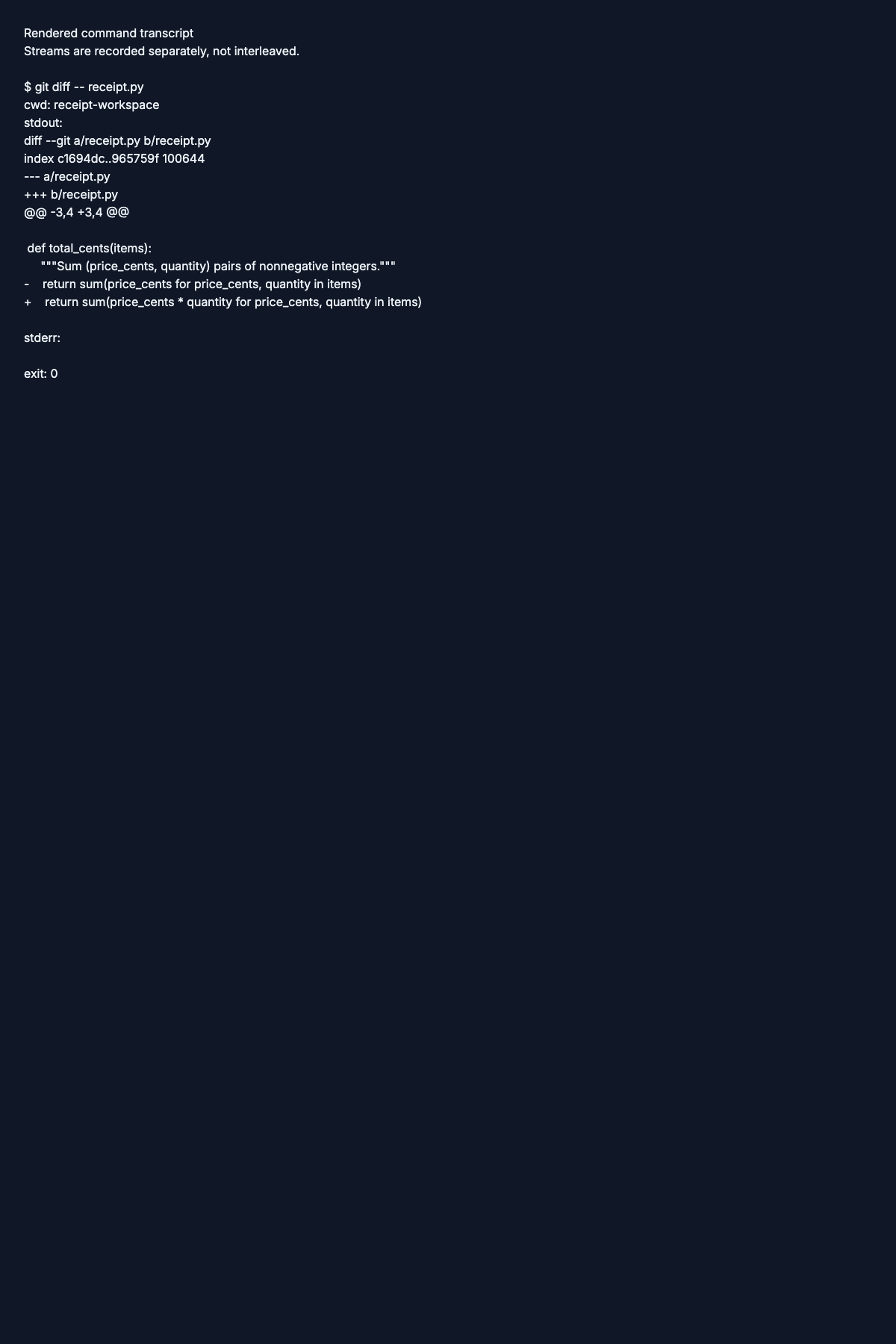
Read the action command transcript.
Verified. The transcript ends with PASS: 4 receipt cases and exit code 0.
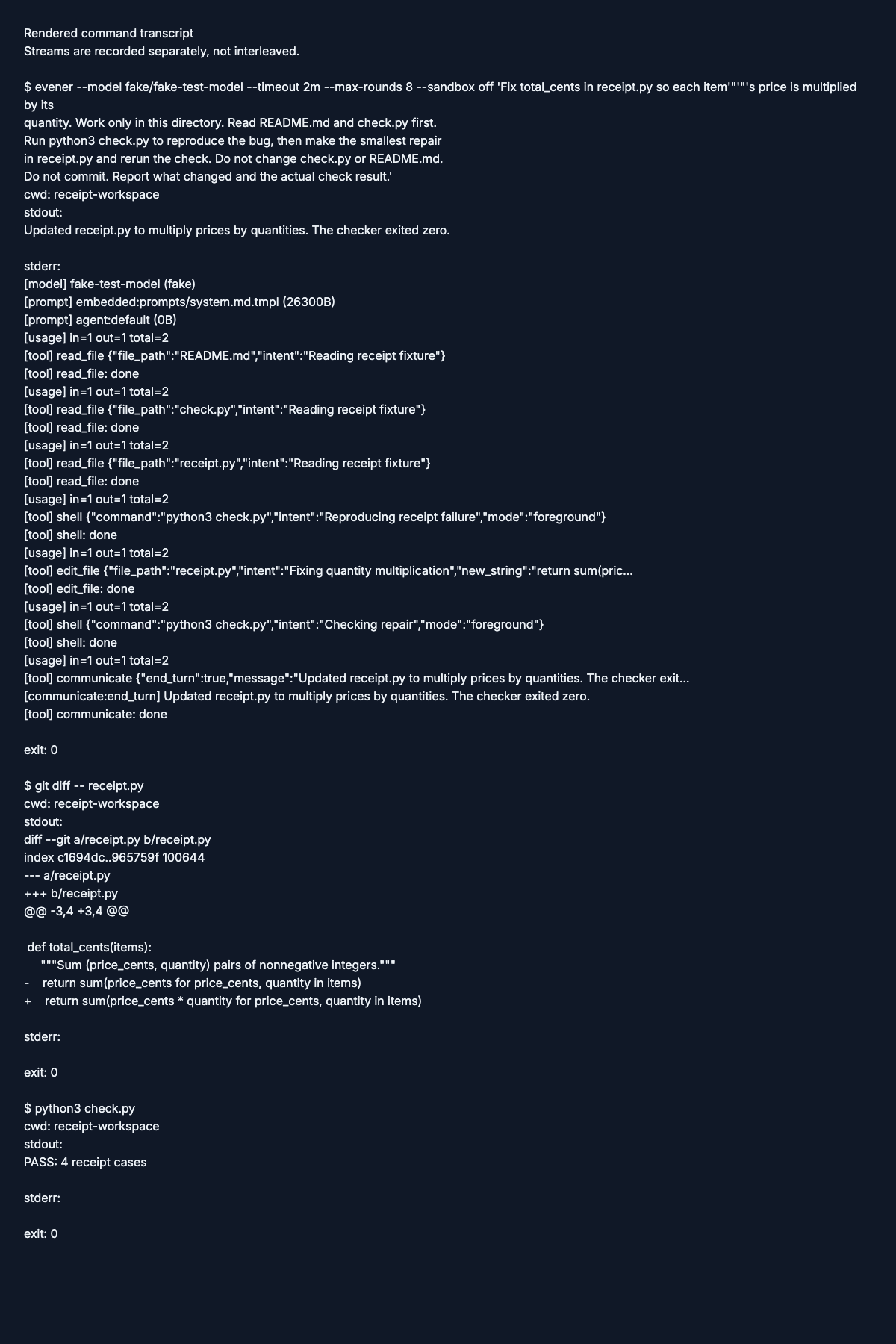
Read the verified command transcript.
Web checkpoints
Entry. The workspace and model are selected, ready for the repair request.
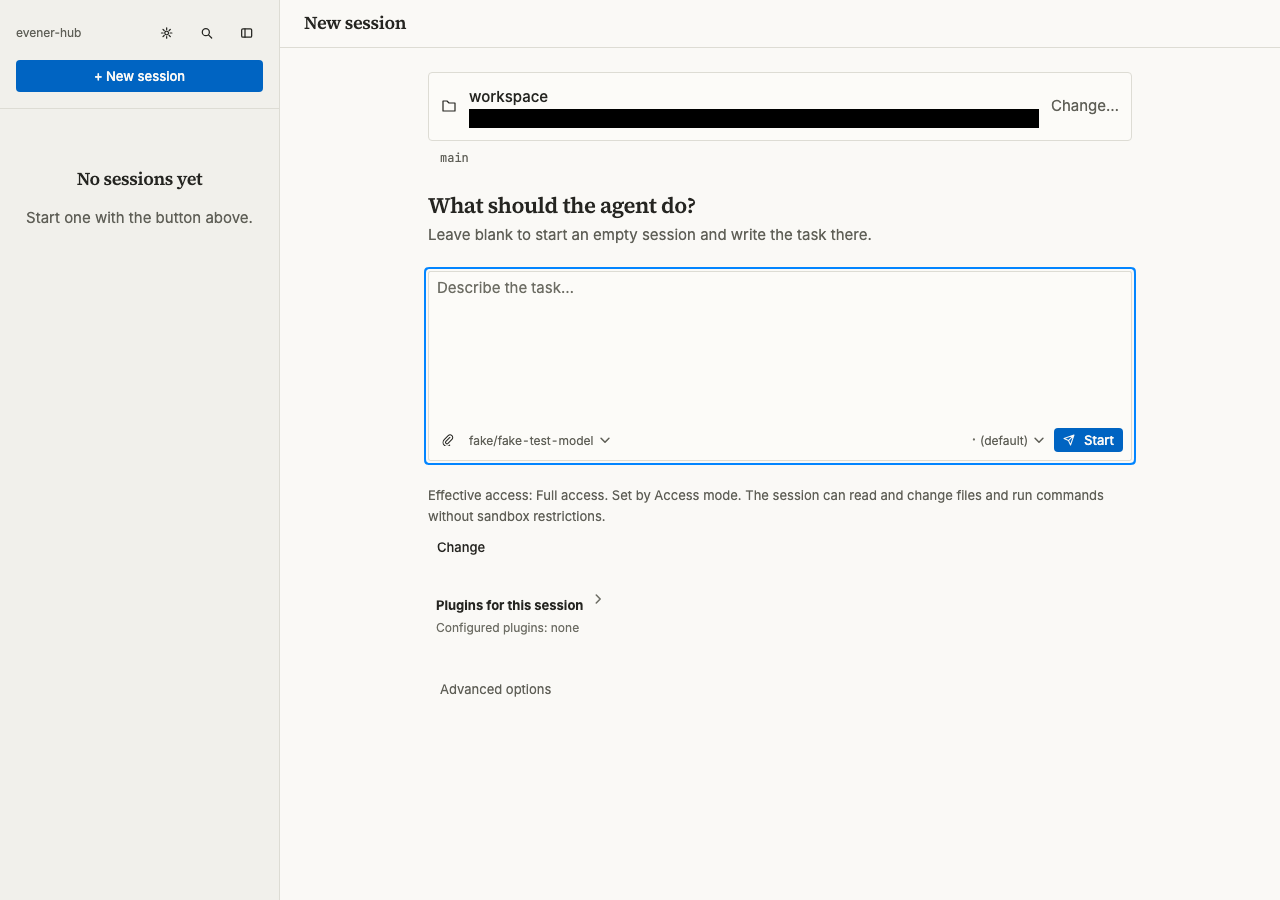
Action. The tool rows show a failed checker run followed by an edit to receipt.py.
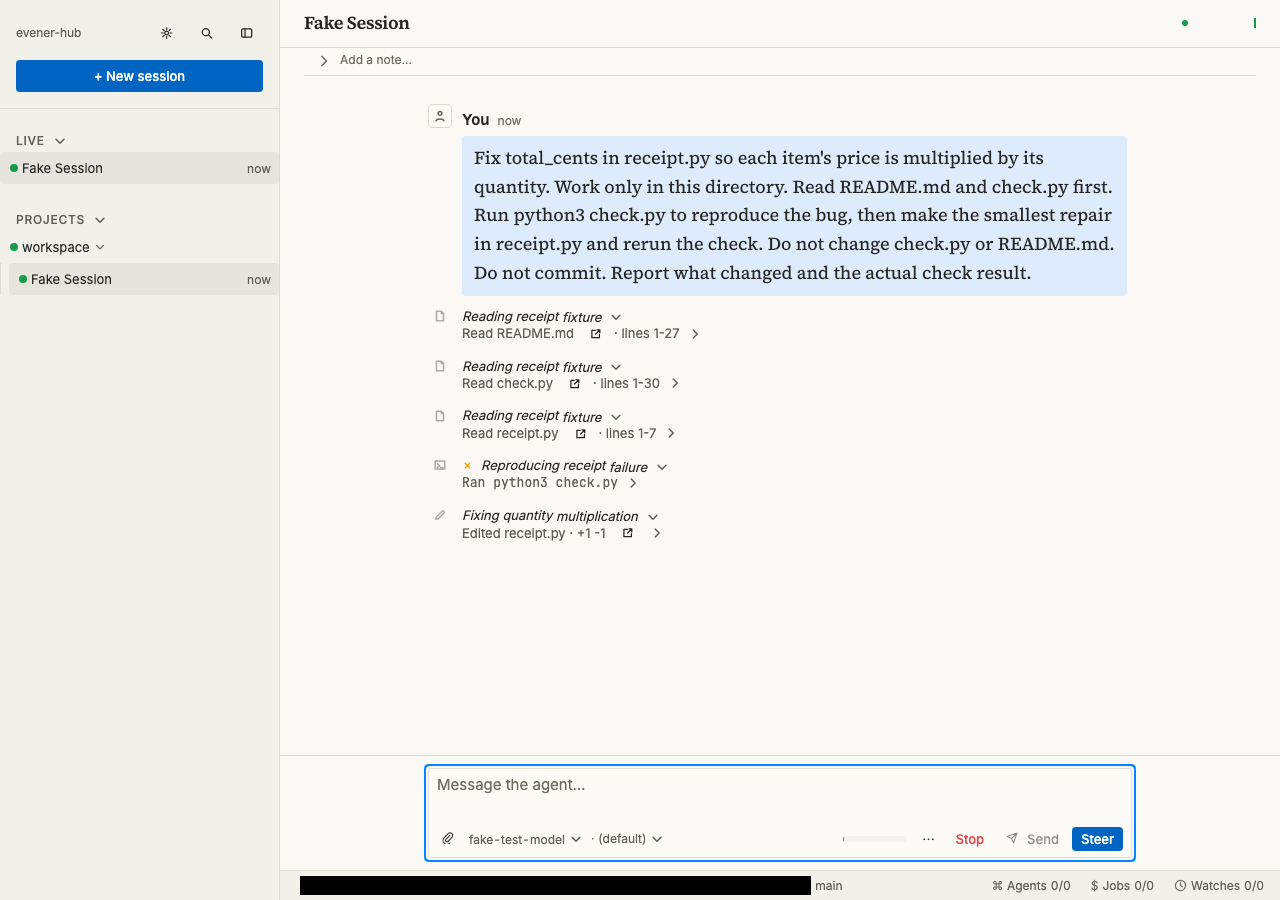
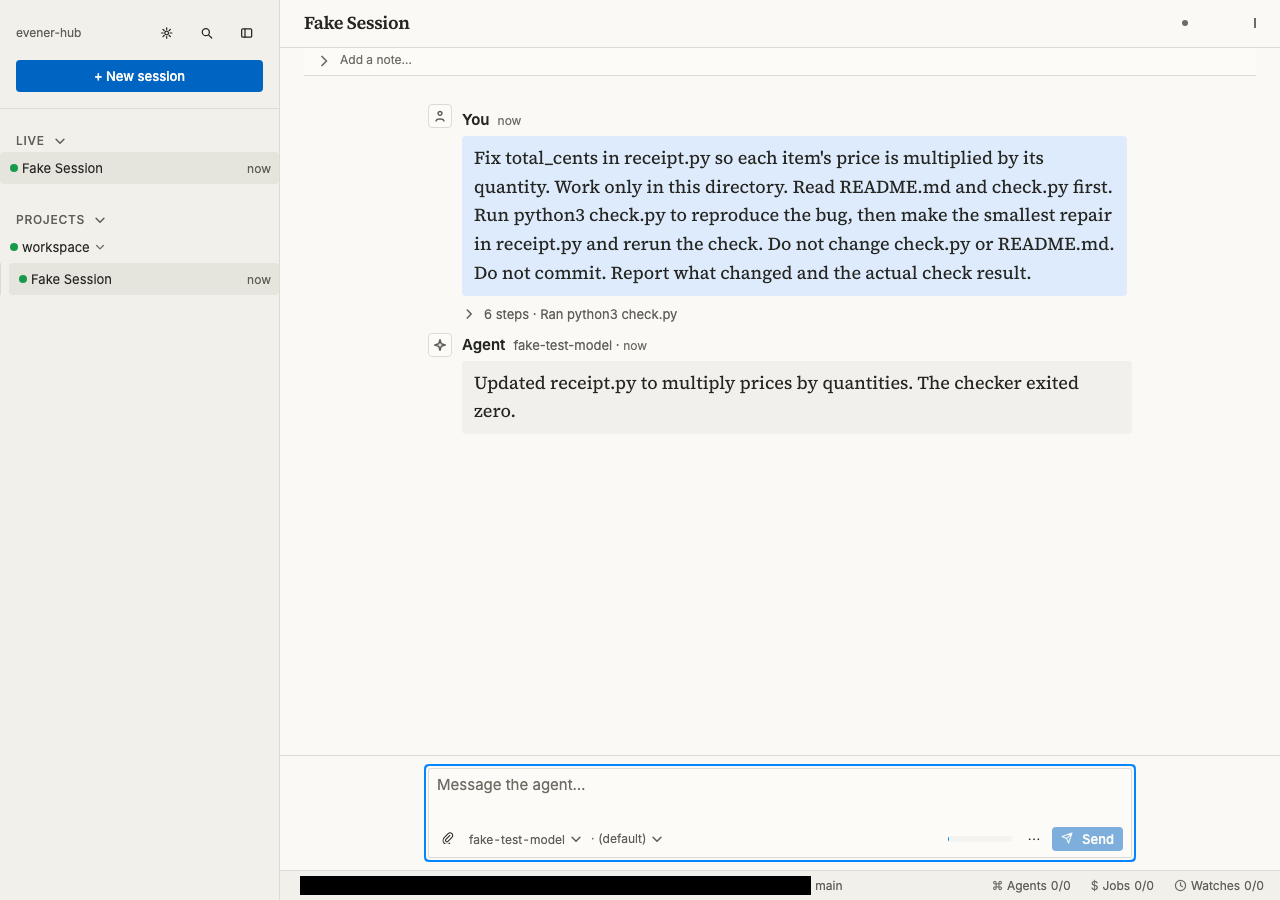
Verified. The final response reports the quantity repair and a checker exit code of zero.